Mini OSD for Pixhawk Flight Controller
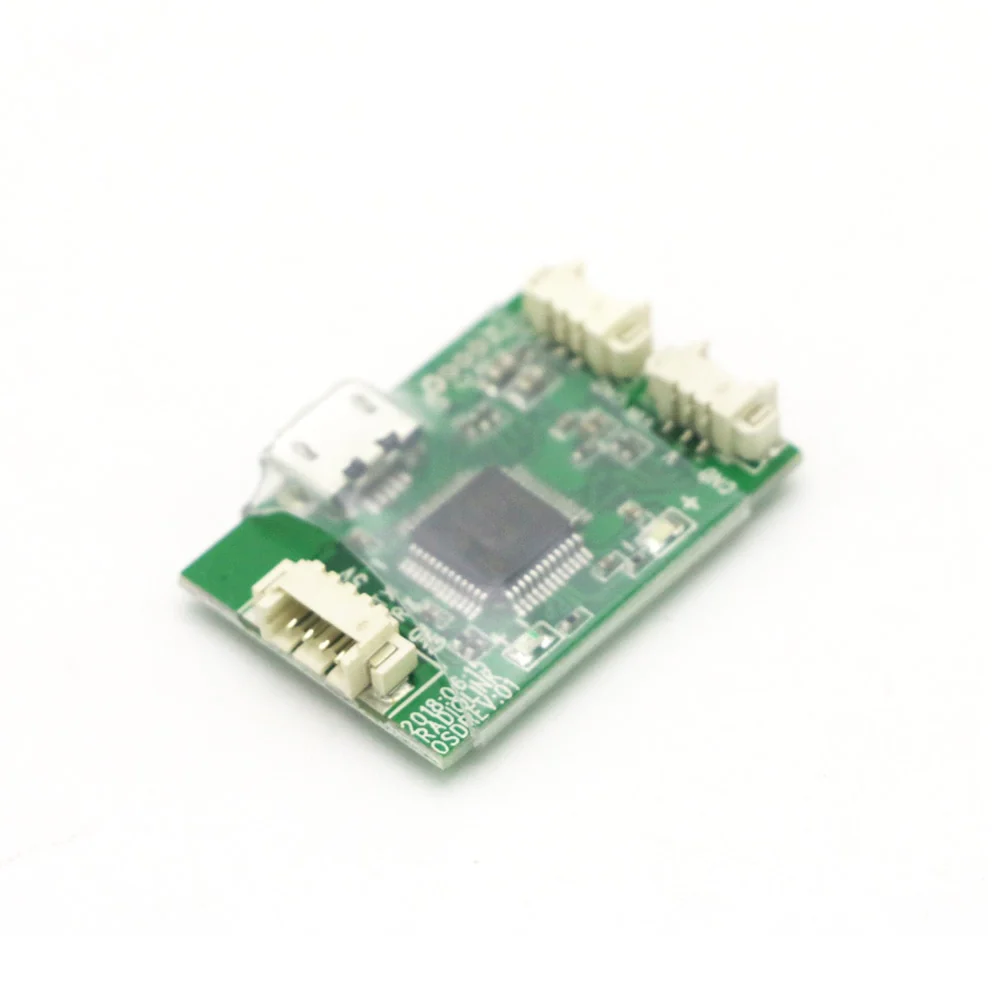
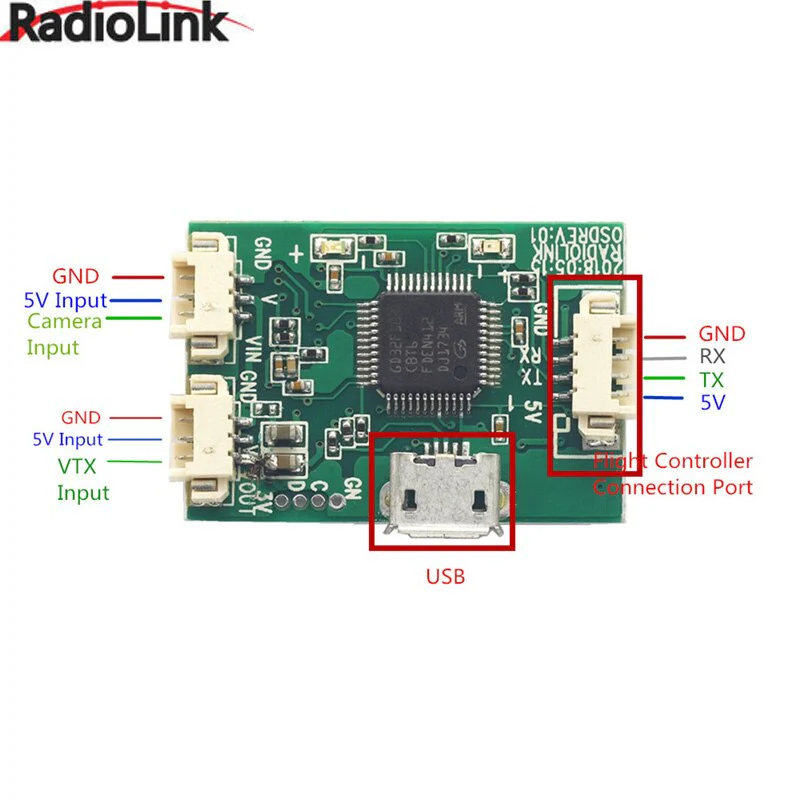
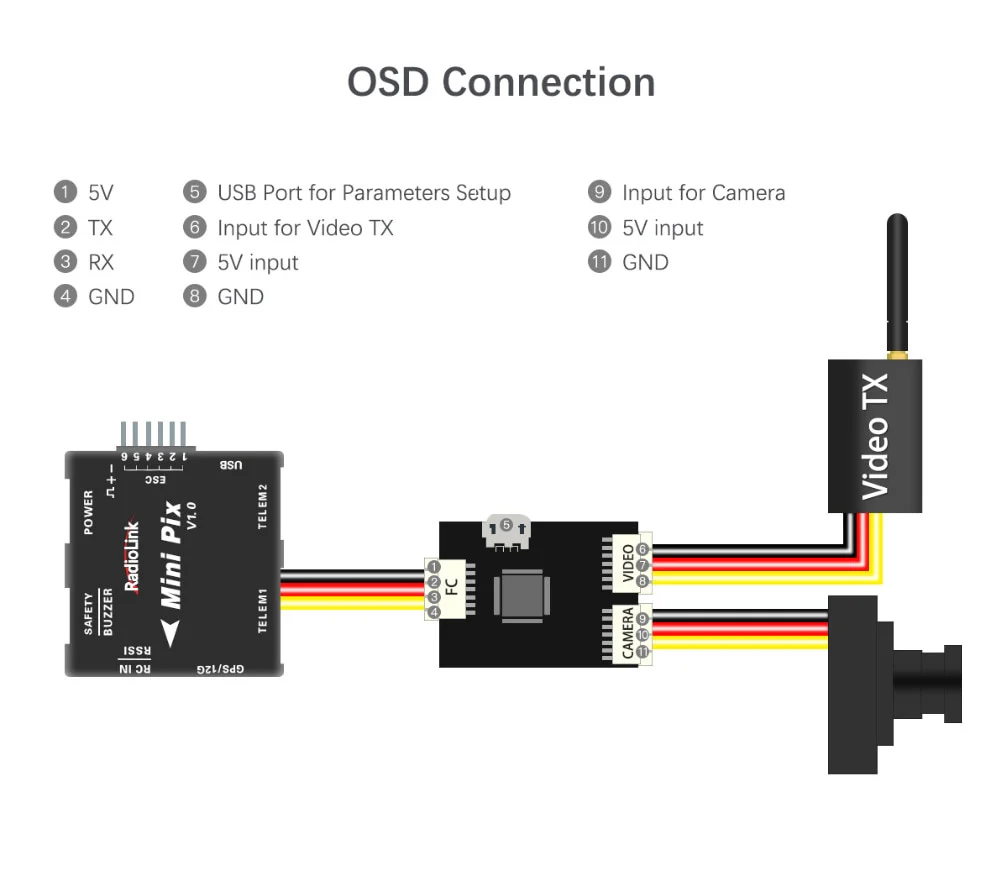
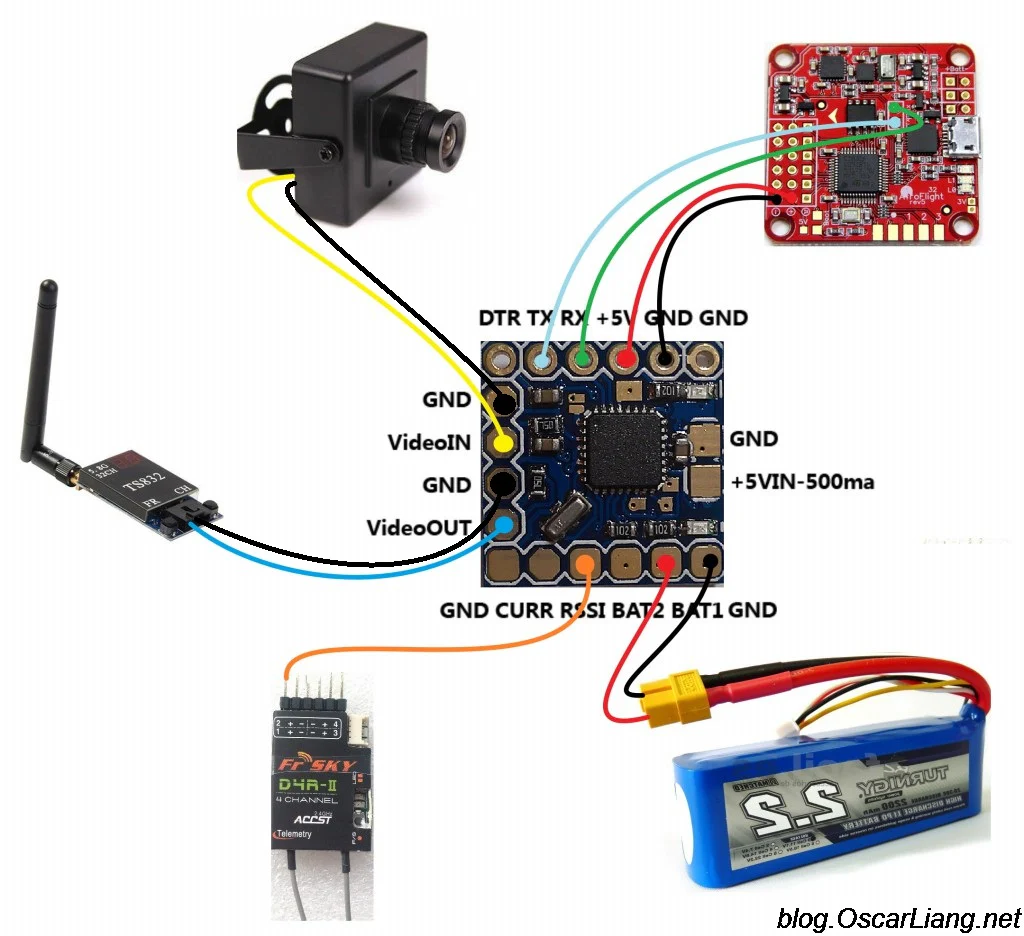
It is a osd video overlay module that combine OSD Signal and Camera Video Signal.
It is compatible with Mini Pix / Pixhawk flight controller, to get the flight datas.
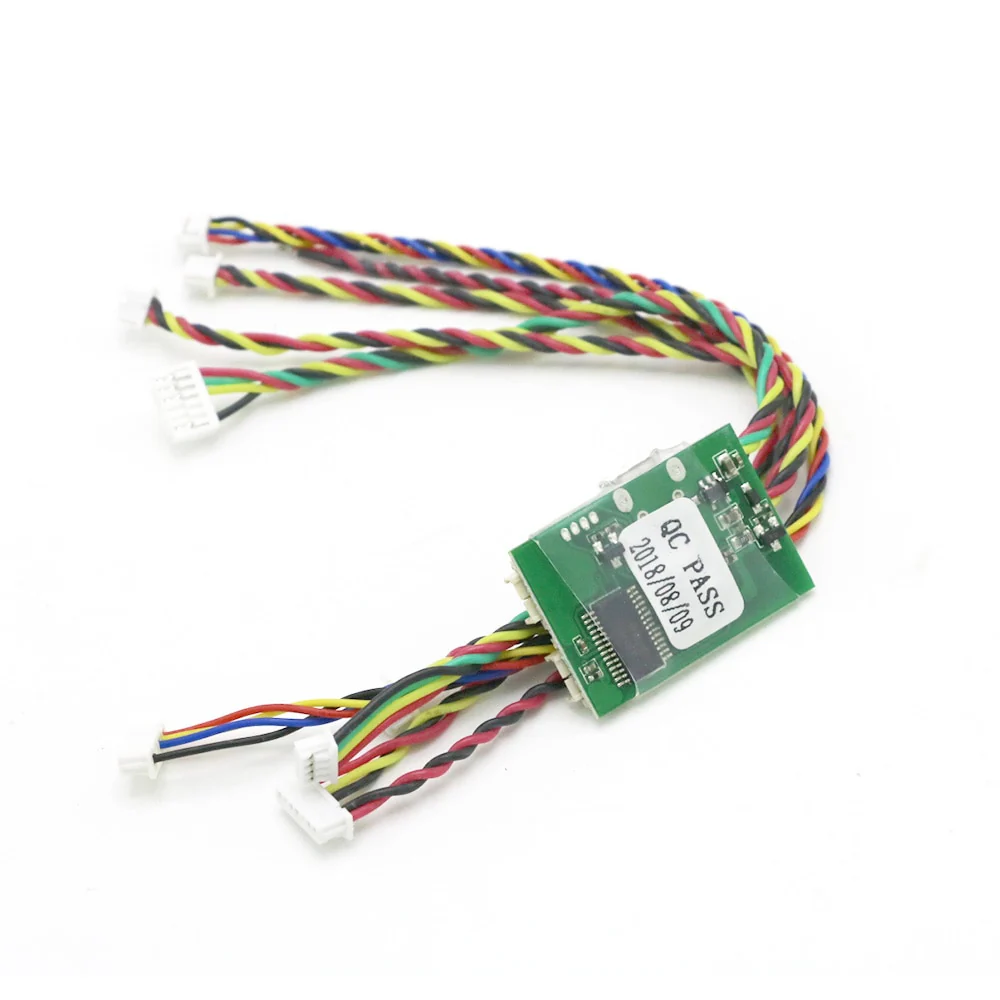
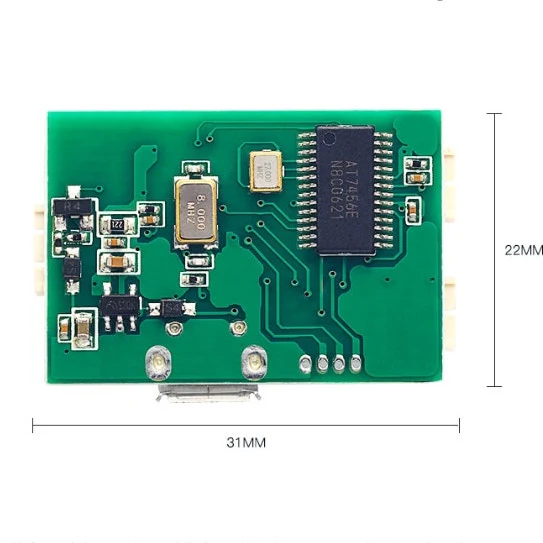
Besides, it has USB Port to connect computer and then can configurate via RadioLinker OSD_Tool app
Specification:
Item Name: Mini OSD Module for Mini PIX / Pixhawk Flight Controller
How to configure
1. Connect this Mini OSD Module to computer via Andriod USB Cable.
2. Open Configuration APP " RadioLinker OSD_Tool"
3. Find " OSD_Config" from file and then double click to enter into " MinimOSD_2.4.1.5"
4. Comes into configuration Page ( Operation like Picture 5 showed on product page )
If you also connect other modules, pls find the right CMO Port as following steps.
( A. Open " my computer " B. get" device manager "
C. then choose COM Port from " Serial Port".
D. Finally, choose same COM on configuration page.)
5. Setting parameter and Save. ( Picture 6 Showed )
- A. Choose the data you want to get by left sheet.
- B. Drag the mouse and then can move the data's showing position to right side.
- C. After setting parameter, click " File" and " Save OSD file " .
- D. If you need same setting, just find " File" and " Open OSD file", then it can show.
6. Change Language. ( Like Last photo showed )
Specifications
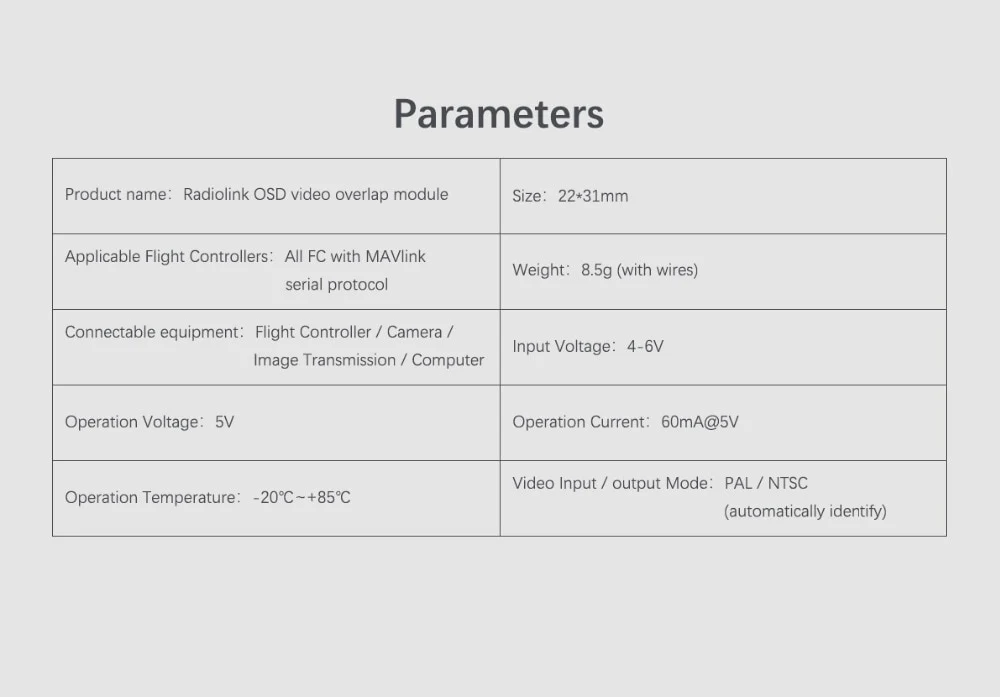
Voltage: 5-12v
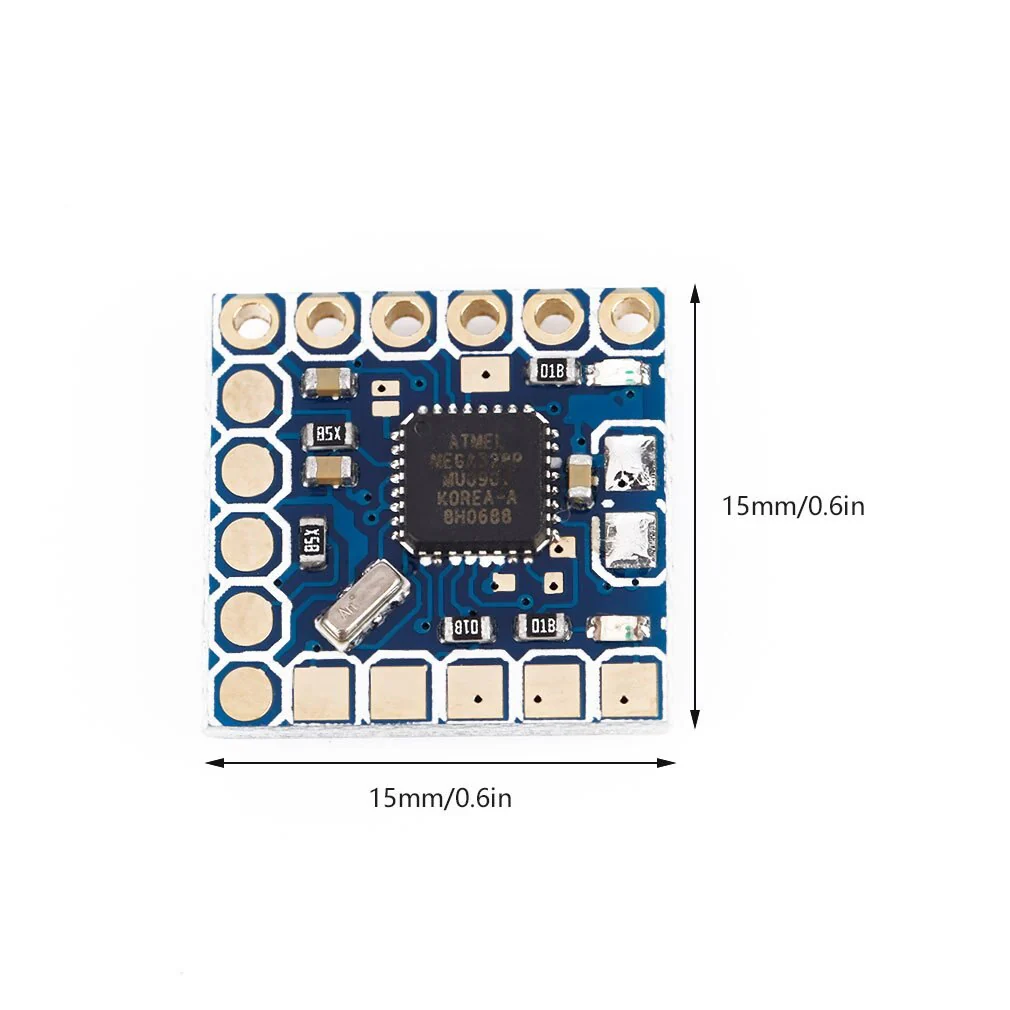
Dimensions: 50 x 18 x 10mm
Weight 4g
Tutorial
Original: $7.94
-70%$7.94
$2.38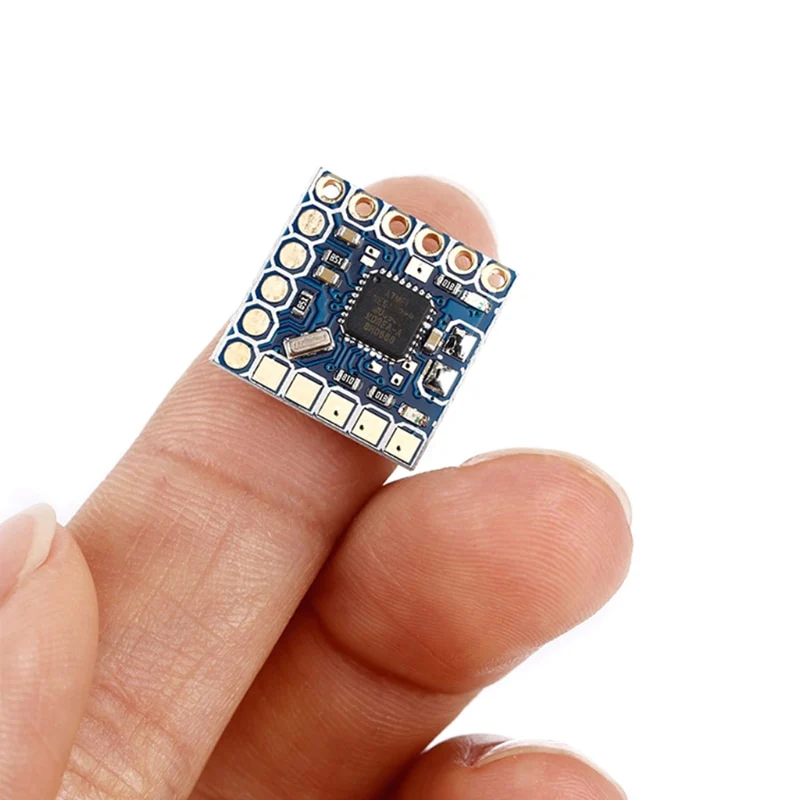
Description
It is a osd video overlay module that combine OSD Signal and Camera Video Signal.
It is compatible with Mini Pix / Pixhawk flight controller, to get the flight datas.
Besides, it has USB Port to connect computer and then can configurate via RadioLinker OSD_Tool app
Specification:
Item Name: Mini OSD Module for Mini PIX / Pixhawk Flight Controller
How to configure
1. Connect this Mini OSD Module to computer via Andriod USB Cable.
2. Open Configuration APP " RadioLinker OSD_Tool"
3. Find " OSD_Config" from file and then double click to enter into " MinimOSD_2.4.1.5"
4. Comes into configuration Page ( Operation like Picture 5 showed on product page )
If you also connect other modules, pls find the right CMO Port as following steps.
( A. Open " my computer " B. get" device manager "
C. then choose COM Port from " Serial Port".
D. Finally, choose same COM on configuration page.)
5. Setting parameter and Save. ( Picture 6 Showed )
- A. Choose the data you want to get by left sheet.
- B. Drag the mouse and then can move the data's showing position to right side.
- C. After setting parameter, click " File" and " Save OSD file " .
- D. If you need same setting, just find " File" and " Open OSD file", then it can show.
6. Change Language. ( Like Last photo showed )
Specifications
Voltage: 5-12v
Dimensions: 50 x 18 x 10mm
Weight 4g